Requirements & setup
Video Installation Guide
Prefer a video tutorial? Watch the full installation process here:
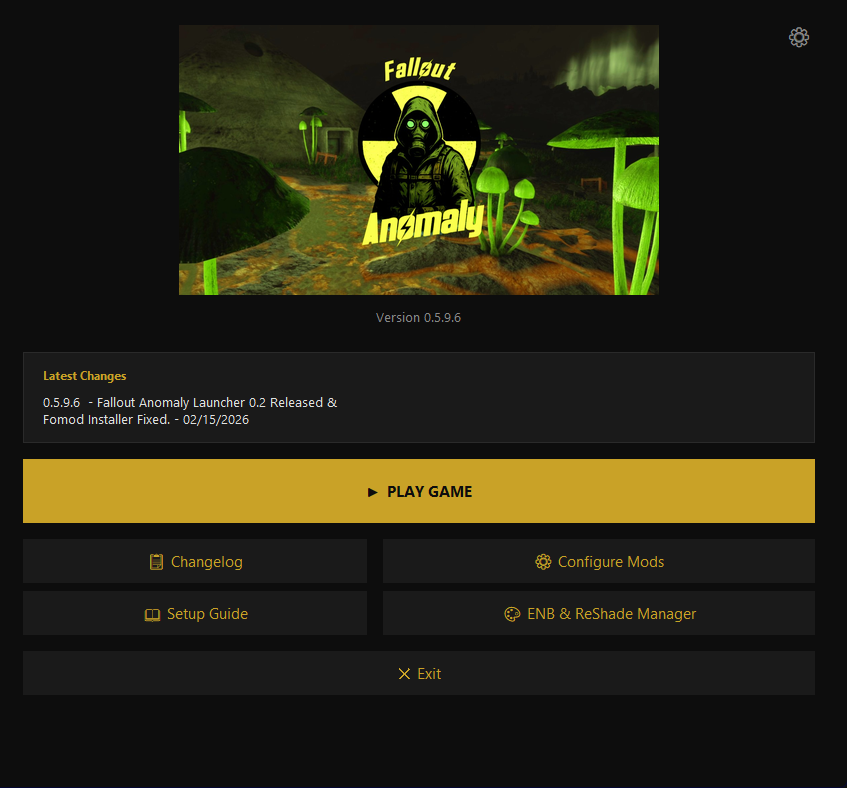
The ultimate all-in-one experience
Fallout Anomaly is designed to offer a truly streamlined installation. Forget days of manual patching—our custom launcher handles the heavy lifting for you.
To get started, simply:
- Check your hardware: Ensure you meet the requirements below.
- Disable Overlays: Manually disable Steam, Discord, and any other overlays. Watch this guide for exact steps.
- Run the launcher: Launch our custom tool to begin the installation.
Unlike other modlists that require hours of preparation, Anomaly only requires you to set your game to English, remove the HD textures, and set Steam updates to "Only update this game when I launch it."
Hardware requirements
Game Configuration
Before starting the installation, you must ensure your game is correctly configured in Steam to avoid installation failures.
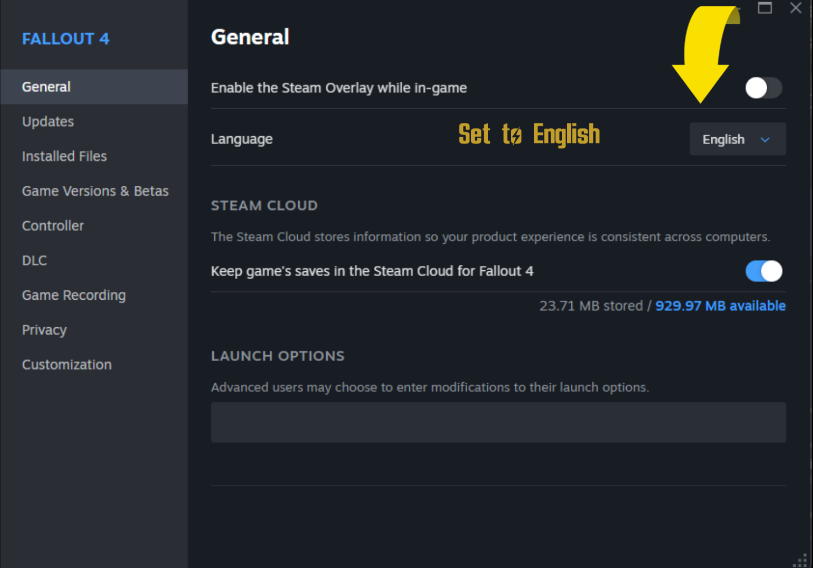
Set Language to English
Fallout Anomaly requires the English version of Fallout 4. If your game is set to another language, Wabbajack will fail to hash the files.
- Right-click Fallout 4 in your Steam Library.
- Select Properties > Language.
- Ensure English is selected.
Remove High Resolution Texture Pack
The official Bethesda High Resolution Texture Pack must be removed so Wabbajack can correctly hash your files and compile the modlist. Failure to do this will cause installation errors.
- Go to the Fallout 4 page in your Steam Library.
- Scroll down to the DLC section.
- Uncheck/Uninstall the High Resolution Texture Pack.
Refer to the video below for exact steps:
Steam Update Settings
To prevent Steam from automatically updating and breaking your installation, you must change the update behavior.
- Right-click Fallout 4 in your Steam Library.
- Select Properties > Updates.
- Under Automatic Updates, select "Only update this game when I launch it."